> For the complete documentation index, see [llms.txt](https://docs.ispecalgo.com/llms.txt). Markdown versions of documentation pages are available by appending `.md` to page URLs; this page is available as [Markdown](https://docs.ispecalgo.com/en/isa-terminal/kak-ustanovit-algoterminal-isa/kak-obnovit-isa.md).
# Updating ISA
Install updates directly from the program; no manual download is needed. Your bots, settings and history are retained.
## When an update is available
ISA checks for updates at startup and every 30 minutes in the background. A notification at the top announces the new version, and a download icon appears beside the current version number.
## Install an update
1. Stop all active bots before updating.
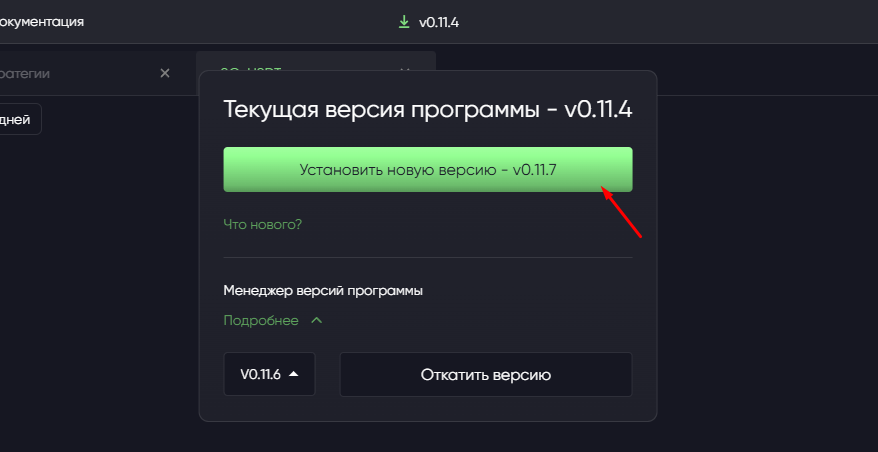
2. Click the version number to open the version manager.
3. Click the button to install the new version, **X.X.X**.
4. Wait while the installer downloads. Do not close ISA during the download.
5. The installer starts automatically. When asked to close the program, click **OK**. ISA closes and installation continues.
6. Click **Next** in the installer. It automatically removes the old program version and installs the new one.
7. At the end, the program opens automatically if the launch option is selected. Your bots and settings remain available.
## Return to an earlier version
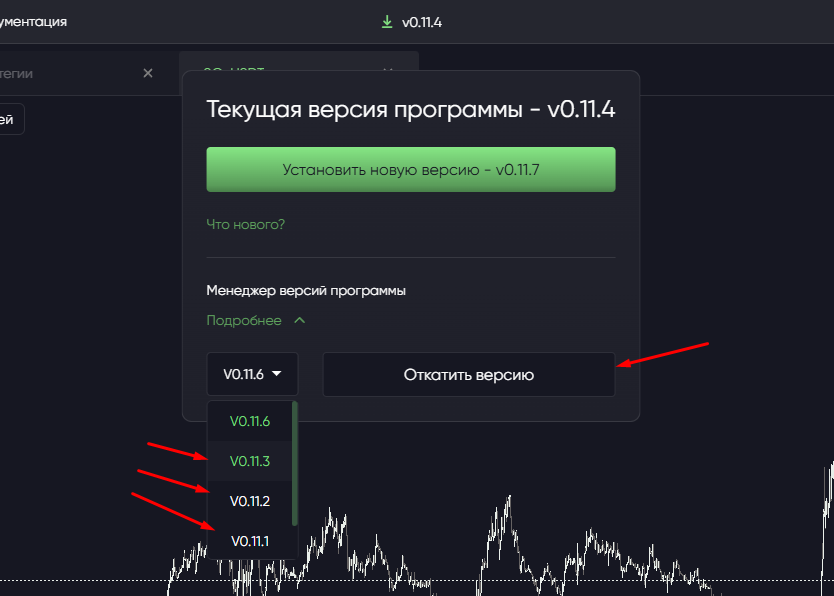
If something stops working correctly after an update, open the same version manager. In the program version management section, open the details, choose a version and select the rollback action. The selected installer downloads and starts automatically, using the same process.
## Common questions
**Are bots and history preserved?** Yes. User data is stored separately from program files and is not affected by the update.
**Do I need to stop bots first?** Yes, stop all bots before updating. Closing the program while a bot has an active position may leave its saved state inconsistent.
**What if I close ISA during the download?** The download stops. Open the version manager and start installation again.
**Should I uninstall the old version?** No. The installer handles this automatically.
Contact support if problems remain after updating.